
 ~2m2:56
How to Make Viral AI Nature Videos for FREE (Full Tutorial)
Nov 6, 2026
Read: ~2m · You save: 56 sec
How to Create Viral AI Nature Videos for Free (Full Tutorial)
How to create viral AI nature videos for free: a step-by-step tutorial with ChatGPT and Google Flow, from idea to finished clip.
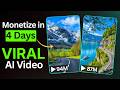
One video has reached 212 million views. An Instagram page with beautiful nature videos has gathered 3.1 million followers. Each video on the page receives a high level of engagement. Other clips on the page have reached 9.3 million, 8.9 million, and 8.5 million views.
Below is a method for creating such videos at no cost. It includes preparing a prompt, generating an image, and animating it in Google Flow.
Step 1. Preparing the Master Prompt
The master prompt for creating a nature video is available in the description of the source material. Copy the prompt in full, from the first word to the last.
Step 2. Choosing an Idea via a Chatbot
- Open any chatbot. This example uses ChatGPT. Claude, Gemini, or DeepSeek will also work.
- Paste the prompt into the chat window and send it.
- After a few seconds, the chat will suggest 10 ideas for nature videos.
- Choose a suitable idea. If none of them fit, request a new batch of ideas.
- Send the number of the chosen idea to the chat or copy the idea itself.
- After a few seconds, the chat will provide ready-made prompts: one separately for the image and one separately for the video.
Step 3. Generating an Image in Google Flow
- Copy the image prompt.
- Open Google Flow and click New project.
- Select the image option.
- Set the aspect ratio to 9:16.
- Select the Nano Banana 2.1 image model.
- Set the thinking level to High.
- Set the number of outputs to 2.
- Paste the image prompt and click Generate.
- After a few seconds, the image will appear in the project.
- Keep the version you like and delete the others so that the workspace stays clean.
Step 4. Animate the Image into a Video
- Click the image, then the three-dot icon, and select Animate.
- In the settings, select Ingredients.
- Set the aspect ratio to 9:16.
- Select the Omni 1.2 Flash video model.
- Set the video quality to 720p.
- Set the video duration to 10 seconds.
- Set the number of results to more than one so you can choose the best option.
- Return to ChatGPT, copy the video prompt, and paste it into Google Flow.
- Click Generate. After a few seconds, the video will be ready to publish.
Step 5. Creating the Next Video
- Go back to ChatGPT and paste the next video idea. The chat will generate new prompts for the image and the video.
- Copy the image prompt and paste it into Google Flow. Click Generate.
- When the image is ready, select it as a reference.
- Copy the video prompt and paste it into Google Flow. Click Generate.
- The new video will be ready in a few seconds.
Introduction
The author shows the success of an Instagram page with nature videos and explains that free AI video content will be created.
- One video gained 212 million views
- The Instagram page gained 3.1 million subscribers
- Other videos on the page have 9.3 million, 8.9 million, and 8.5 million views
Getting Ideas with a Chatbot
Open the master prompt from the video description, copy it in full, and paste it into a chatbot (ChatGPT, Claude, Gemini, or DeepSeek) to get 10 video ideas about nature.
- The master prompt file is located in the video description
- The prompt must be copied in full, from beginning to end
- ChatGPT, Claude, Gemini, or DeepSeek can be used
- The chatbot produces 10 idea topics for nature videos
- If the ideas don't fit, you can request a new batch
Creating an Image
The selected idea is sent to the chat, after which an image prompt and a video prompt are received. The image is created in Google Flow.
- The idea number or the idea itself is pasted into the chat
- The chat outputs an image prompt and a video prompt for the idea
- For the image in Google Flow, choose New project and the image option
- Aspect ratio 9:16, image model Nano Banana 2.1
- Thinking level is set to high, number of outputs — 2
- The extra image is deleted
Creating a Video
A video is created from the finished image using the animate function with ingredients settings.
- Click the three dots on the image and select animate
- In the settings, select ingredients
- Aspect ratio 9:16, video model Omni 1.2 Flash
- Video quality 720p, duration 10 seconds
- Number of outputs more than one to choose the best
Финальная генерация видео
Видео-промпт вставляется в Google Flow и запускается генерация, после чего видео готово к публикации.
- Копируется video prompt из ChatGPT
- Промпт вставляется в Google Flow и запускается generate
- Готовое видео генерируется за несколько секунд
Creating the next video
For new videos, the process repeats: a new idea, new prompts, the image as a reference, and then the video.
- For a new idea, a new image prompt and video prompt are requested
- The finished image is selected as the reference
- The video prompt is pasted again to generate the video