
 ~5m25:58
What Is Agentic Context? 🧠 Hermes, Honcho Memory & Obsidian LLM Wiki
Nov 7, 2026
Read: ~5m · You save: 21 min
What Is Agentic Context? Hermes, Honcho Memory & Obsidian LLM Wiki
Learn how context windows, Honcho memory, and an Obsidian LLM Wiki let AI agents share knowledge across profiles and tools without starting from scratch every chat.
Published 2026-11-07
An AI agent can work more effectively when it does not start each task from zero. Context, the information an agent can use at a given time, determines how much of a user's history, preferences, and project state the agent can draw on. This article describes the main types of context available to an agentic AI system, using the Hermes agent as the example. The concepts apply to other agentic AI tools.
The article covers five areas: the context window, built-in context files, external memory through Honcho, file-based knowledge through an Obsidian LLM Wiki, and methods for reducing context waste.
Context Types at a Glance
| Context type | Where it lives | When it loads | Survives a new chat |
|---|---|---|---|
| Context window | Active working memory of the model | Continuously during a conversation | No |
| Built-in files (soul.md, agents.md, user.md, memory.md) | Loaded into the system prompt | At the start of every chat | Yes, as files |
| Tools and skills | Tool definitions and skill files | Tools: every chat. Skills: only when needed | Yes |
| External memory (Honcho) | Outside the context window | At runtime, when retrieved | Yes |
| File system (Obsidian LLM Wiki) | Markdown notes in a vault | When the agent reads specific notes | Yes |
The Context Window
The context window is the maximum amount of information an AI model can process at once. The presenter compares it to a desk. Everything the agent can see must fit on that desk.
Hermes displays context usage at the bottom of the interface. In the example, 27.9 thousand of 500,000 tokens were in use, or 6 percent. Clicking the usage display opens the context window itself. A context meter can be enabled by right-clicking the usage bar.
The context window contains five categories of content:
- System prompt
- Tool definitions
- Sub-agent definitions
- Memory
- Conversation
The first four categories are built-in context. Context is temporary. Other forms of context, covered later, act more like a filing cabinet. They persist outside the conversation and are not compressed.
Typing /compress compresses the conversation context. This reduces the tokens in the window, and the agent creates a summary of the conversation.
Built-in Context
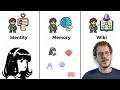
Built-in context is the set of files and definitions that load into the agent's context window. Three types of files exist: tools (equipment), skills (repeatable instruction sets), and files (stored outside the context window, in a separate filing cabinet). Four core Markdown files provide the agent's identity, instructions, preferences, and facts.
System Prompt and Identity: soul.md
The system prompt includes the harness, which is the structure of the agent. In this example the harness is Hermes. Other harnesses named in the source include Claude Code, Codex, Antigravity, Grokbot, and OpenClaw. Each harness has its own system prompt.
The system prompt also includes the agent's identity, defined in soul.md. Each profile on a gateway, which the presenter describes as equivalent to a bot in bot mode, has its own soul.md. The default soul.md loads into every new chat. Each profile can have a different soul that defines its personality and role.
The presenter customized the soul of a researcher agent. The file includes a research protocol, a mission, and instructions for working with a librarian agent and an orchestrator agent.
Project Instructions: agents.md
agents.md contains instructions for a specific project or agent. The presenter describes it as the project brief or the agent's constitution.
Each harness has its own file type, such as hermes.md or claude.md. agents.md is an open format that all the agents in the example understand. The presenter recommends it unless a specific reason exists to use a harness-specific file. Its loading depends on location. A file tied to a specific project may load only when the user works within that project.
Preferences and Durable Memory: user.md and memory.md
In settings, under memory and context, persistent memory is enabled. Hermes uses two files for its built-in memory:
- memory.md stores durable memories and the state of projects. The presenter describes it as a small notebook for the agent.
- user.md maintains a profile of user preferences.
A budget can be set to limit how much space these files occupy in the context.
The example user.md records that the user values privacy and transparency and that the agent should explain when local file tool contents may leave the system. The example memory.md records that the default profile uses a Docker backend and includes instructions for running the agent in Docker. Docker isolates the agent and restricts its access. The presenter covers Docker in a separate tutorial.
The soul, agents.md, user.md, and memory.md files load into every chat. Keeping them short reduces the context window available for each conversation.
Built-in Memory Plugin: Memory Wiki
The official Memory Wiki plugin, from Nous Research, is installed under capabilities and plugins. It adds a Memory Wiki tab. The Memory Wiki draws information from the user's sessions. It does not involve an LLM-generated wiki. It provides:
- Subjects extracted from sessions
- Daily logs of session activity
- A summary of recent sessions
- Views of memory.md and user.md
- Session snippets tied to specific subjects
Users can search by subject, not only by keyword, to find supporting conversations. In the example, a session about environment variable issues produced a session snippet on that subject.
Tools and Skills
Tools add tool definitions to the context. The more tools loaded, the more definitions the context must hold. In the example, tool definitions used 9,000 tokens. Tools the agent does not need can be disabled. The Kanban tool was disabled for the example agent.
The task delegation tool allows a parent agent to delegate work to sub-agents. Its sub-agent definitions use 1,200 tokens. Disabling task delegation removes these tokens from the initial context.
Skills load only when needed. The agent searches for a relevant skill and loads it when required. Content that sits in the system prompt can move into a skill to reduce its constant footprint. The Obsidian skill, which allows the agent to read, search, create, and edit notes in an Obsidian vault, loads only for file system tasks.
External Memory: Honcho
Built-in memory lives inside the context window. External memory providers operate outside it, at runtime. An agent stores session details externally and retrieves them when needed. Hermes lists external memory providers under plugins. Options named in the source include Hindsight, Nemesis, and Hanzo. The presenter previously covered Nemesis and Hindsight in a separate video.
The presenter focuses on Honcho. According to the presenter, Hindsight builds a knowledge graph and entity system that maps facts across projects. Honcho builds a stateful model of how people, agents, and groups change over time.
How Honcho Works
Honcho builds a profile of the user's preferences and working style from conversations with the agent. Its memory is stored outside any single chat. Any connected agent can retrieve relevant context later, across tools, agents, models, and machines. The user serves as the central point of a shared memory.
The system uses a structure of workspaces, sessions, and peers. Messages sent to the agent go to Honcho. Honcho reasons over the messages, decides what to store, and produces insights. Those insights return in later interactions.
Honcho adds three capabilities to Hermes' built-in memory:
- Prompt-time context injection: Context loads only when needed.
- Cross-session continuity: Preferences, product history, and working context carry across sessions.
- Durable writeback: New information learned in a conversation is written back to the system.
The presenter cites a token saving of 60 to 90 percent when using Honcho, because the external provider reduces the context that must be loaded.
The peer system lets multiple Hermes profiles connect as separate peers, with the user as the shared user. Each peer builds its own context and can access shared memories. This structure supports multi-profile and multi-bot setups.
Honcho is open source. It can be self-hosted or run in the cloud. Self-hosting requires enough RAM to run a Docker container and a server. It also requires a connection to another LLM or a local LLM. The presenter used the cloud version because it is the simplest starting point. Honcho offers a free tier that refreshes every month.
Setup Procedure
The following steps set up Honcho in Hermes, based on the presenter's demonstration:
- Open capabilities, then plugins, and select Honcho. Click install. The plugin installs only for the current bot or profile.
- Open settings, then memory and context. Under memory provider, select Honcho.
- Select the cloud deployment option.
- Sign in to Honcho. Under explore, create a workspace. The example workspace is named
wanderlust-tutorials. - Open API keys and create a new key. Limit its scope to the workspace. Copy the key.
- In Hermes, paste the API key. Leave the base URL blank and keep the cloud setting.
- Enter the user peer name, which is
Callumin the example. Enter the AI peer name, which isWaterloo Tutorialsin the example. Keep the default session strategy, or change it as needed. - For a single user who does not share the profile, pin the user peer. Pinning keeps the username stable when profiles change.
- Restart the gateway. The presenter had to restart the gateway for the Honcho plugin to configure correctly.
Starting a new session confirms the connection. The agent responded after connecting to Honcho.
Testing Memory Across Agents
The presenter began with an interview. The agent asked questions to learn about the user. The presenter answered them. Honcho then used its Conclude function to analyze the answers. The Honcho dashboard shows all messages under the project. Conclusions can be filtered by user and by the agent that produced them.
To test whether memory transfers between agents, the presenter performed the following steps:
- Created a new profile with no configuration. The profile was empty.
- Asked the new agent, "Who am I?" The agent answered that it did not know the user's name or identity. The response noted that the account visible in the session was "wanderlust," but that it could not confirm this was the name the user used.
- Created a new API key with an expiration date and copied it.
- Installed Honcho for the new profile, restarted the desktop, and set the memory provider to Honcho in settings.
- Applied the new API key, set the same workspace and peer name, pinned the user peer, saved changes, and restarted the gateway.
- Set the session strategy to per directory, which maps conversations to a folder. The presenter introduced the
wanderlust-tutorialsfolder. Other options are per repository, per session, or global. - Asked "Who am I?" again.
The agent then retrieved information the user had given to the previous agent. The presenter concluded that the memory system works across profiles. Each agent keeps a separate identity while sharing context.
File System Knowledge: Obsidian LLM Wiki
Memory systems store conversation history and preferences. Project notes and reviewed knowledge are stored as files. Hermes can create and update files in an Obsidian vault when given write access, using its file tools or a skill such as the Obsidian skill. The user can also add notes directly. The vault holds a shared record of projects and research.
Loading the full vault into every conversation would enlarge the context. Instead, the agent searches the vault for notes relevant to the specific task.
Multi-Agent Workflow
The example workflow uses separate agents with defined roles:
- A researcher agent produces proposed files.
- A librarian agent receives the proposal as a context handoff. The librarian decides whether the material enters the overall wiki.
- An orchestrator agent coordinates the profiles.
Notes produced this way can be read by another agent. The next agent continues the work without the original conversation.
Over time, the approved notes form an LLM Wiki, which is a persistent, structured, interlinked knowledge layer that AI tools can share. The presenter maintains the wiki with an agentic librarian. The process follows these stages:
- Raw sources, such as articles, are collected.
- The raw sources are reviewed and turned into proposals.
- Approved proposals enter the vault as structured knowledge linked to the rest of the knowledge system.
Example Retrieval
The presenter queried a wiki skill profile, connected to a wiki skill vault, with a prompt. The prompt asked which gaps existed in the research on agentic memory poisoning prevention and how to maintain human learning alongside AI. It requested a list of research avenues that did not repeat existing work and asked for citations from the LLM Wiki.
The agent loaded the grounding and citation skill, the LLM Wiki review skill, and the wiki skill. It then read the relevant notes. According to its response, the existing wiki covers core security, authority tiers, gated writes, and untrusted retrieval. The response identified the main opportunity as research into how these defenses function within a human-AI learning system. The key questions concerned whether people can build and revise knowledge with an agent without accepting contaminated knowledge or being overwhelmed by security decisions.
The agent cited notes already in the vault, such as the note on agentic memory poisoning. It did not search the internet. The presenter describes the vault content as the third tier, because the content comes from material the user has already reviewed and approved.
The response included a suggested order for filling gaps in the wiki. The presenter stated that the goal is to increase the quality and trustworthiness of the knowledge created with the AI.
Context Optimization
Optimization addresses waste at each layer of context. Four methods were described.
1. Control What Enters the Context
Before a task, the user should determine what the agent needs. The following adjustments reduce context load:
- Disable tools the task does not require.
- Reduce the size of soul.md when it is too large.
- Keep memory.md and user.md short when an external memory system handles memory.
- Move content from these files into Obsidian notes. The soul can then reference the vault and direct the agent to it for external information.
2. Manage Compression Timing
Compression can be triggered manually before the next task. Waiting for automatic compression, which occurs when the context reaches 500,000 tokens, may lose detail that a summary would have preserved. Preemptive compression keeps a summary in place before a new task begins.
3. Hand Off Context Between Models and Chats
Switching models forces the previous context to reload into the new model, which consumes additional tokens. The presenter switched from the model named Terra to the model named Luna and observed this effect.
A more efficient method is to ask the agent to produce two outputs:
- A context summary of completed work, saved as a Markdown note in the Obsidian vault.
- A prompt for the next chat that loads the summary.
The next chat reads only the parts of the document it needs. This method reduces the context required to bring a new agent up to speed. The method becomes more valuable as conversations grow. The presenter suggests the agent update a context handoff document iteratively over a long project, for example after 50 or 100 chats.
For large projects, the presenter maintains a status document that the agent updates. A new chat, or a different agent such as Claude Code or Codex, can read the same file and resume at the same point. The status document records project knowledge. Memory records operational and user-based knowledge.
4. Configure Auxiliary Models and Compression Engines
Compression uses a model. Under settings, auxiliary models, the compression model can be changed from the default, which is set to main. A different model can reduce the cost of compression.
Under memory and context, the context compression section lists alternative context engines. Some users have created custom compressors. The presenter has not tested them. The presenter also covered automatic model switching in a separate video on model routing.
Introduction and Context Windows
Context is the information an agent can work with at once; the context window is its working memory, shown in Hermes as a meter (27.9k of 500k tokens, 6%). Context is not permanent memory, unlike files which act as a filing cabinet.
- Context window is the maximum amount of information an AI model can work with at once, likened to a desk.
- Hermes showed 27.9 thousand of 500,000 tokens used (6%) in the example.
- Context meter categories: system prompt, tool definitions, sub-agent definitions, memory, and conversation.
- Running /compress reduces conversation context and the agent creates a summary.
- Context is not permanent memory; files survive outside conversations and are not compressed.
Built-in Context
Built-in context loads into every chat: the system prompt (harness plus soul.md identity), agents.md project instructions, and memory files (user.md preferences and memory.md notes). Tools and skills also consume context, with skills loaded only when needed.
- Each agent harness (Hermes, Claude Code, Codex, Antigravity, Grokbot, Openclaw) has a system prompt that includes the harness structure.
- soul.md defines an agent's personality or identity and is loaded into every new chat; each profile/bot can have its own soul.md.
- agents.md is described as an open format for guiding agents, understood by all agents, and is preferred over hermes.md or claude.md for universality.
- agents.md may not load unless working within its specific project.
- Memory settings: persistent memory is on; memory.md stores durable memories and user.md maintains user preferences, with a configurable budget.
- memory.md example mentions the default profile uses a Docker backend.
- Built-in memory files load every chat, so they should be kept lean.
- Memory Wiki is an official plugin by Nous Research that derives information from sessions, daily logs, and session snippets without LLM-generated wiki content.
- Tool definitions in the example used about 9,000 tokens; task delegation about 1,200 tokens; unused tools such as Kanban can be turned off.
- Skills are pulled only when needed; the Obsidian skill is an example used only for file system work.
External Memory with Honcho
External memory operates outside the context window at runtime, storing session details and retrieving them later. Honcho is presented as a cloud-or-self-hosted memory layer with profiles as peers, cross-session continuity, and durable writeback.
- Memory providers are listed under Plugins in Hermes; examples named include Hindsight, Nemesis, and Hanzo.
- Hindsight and Nemesis were covered in a previous video and are available as separate plugins.
- Honcho builds a profile from conversations, stores memory outside any one chat, and works across tools, agents, models, and machines.
- Honcho peers allow separate Hermes profiles to share memories with the user as the shared center point.
- Honcho is open source and can be self-hosted or run in the cloud; a free tier refreshes monthly.
- Honcho is stated to provide a 60 to 90% token savings.
- Honcho gives Hermes three capabilities: prompt-time context injection, cross-session continuity, and durable writeback.
- Setup: install Honcho plugin per profile, choose memory provider Honcho, create a workspace (wanderlust-tutorials) and a workspace-scoped API key, name the user (Callum) and AI peer (Waterloo Tutorials), pin the user peer, then restart the gateway.
- Self-hosting requires enough RAM, a Docker container, a server, and an LLM connection; cloud was chosen for simplicity.
- Test: a new profile initially could not identify the user; after configuring Honcho with the same workspace and peer name, it recalled the user's identity from the earlier session.
File Systems and the Obsidian LLM Wiki
An Obsidian vault acts as an external filing cabinet and LLM Wiki. Agents retrieve only relevant notes rather than loading the whole vault, and a librarian agent reviews handoff proposals before they enter the wiki.
- Agents can create and update notes in the Obsidian vault with write access via file tools or skills.
- A researcher agent created a proposed file that was passed to a librarian agent, which decides whether it enters the wiki.
- The Wiki skill profile was used to query the LLM Wiki for research gaps on agentic memory poisoning prevention while maintaining human learning with AI.
- The agent loaded the ground and citation skill, LLM Wiki review skill, and Wiki skill, then cited relevant notes.
- The agent noted existing coverage of core security, authority tiers, gated writes, and untrusted retrieval, and suggested the biggest opportunity is studying how defenses work in human-AI learning systems.
- Raw sources are reviewed, turned into proposals, and added to the vault if approved.
Context Optimization
Optimization focuses on controlling what enters context, managing conversations through compression, using context handoff files instead of reloading history when switching models, and choosing cheaper compression models.
- Step one: control what enters context by turning off unneeded tools, reducing soul.md size, keeping memory.md and user.md lean, and offloading content to Obsidian with references in soul.md.
- Compress context preemptively before a new task rather than waiting for automatic compression at the 500,000-token limit.
- Switching models (example: from Terra to Luna) forces previous context to reload into the new model, consuming more tokens.
- Ask the agent to create a context summary as an Obsidian markdown note and a prompt for the next chat, creating a handoff file.
- Status documents can be updated by the agent so Claude Code or Codex can pick up where work left off.
- Auxiliary models settings allow changing the compression model (currently set to main) to conserve cost.
- Context engines can be changed under memory and context settings; some users have created custom compressors.
- A separate video covers model routing for automatically switching between models.