
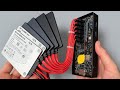
Built a NAS on TrueNAS: A DIY File Storage on a Mini PC
Built a home NAS on a mini PC with TrueNAS: safe single-supply power, 5 Gbit/s networking, speed tests, and an overview of ZFS pools and settings.
Initial Task and Failed Attempt
In March 2024, one of the inexpensive mini PCs from AliExpress was purchased for the project. The processor is an Intel N100.
The original goal was to connect an external graphics card via a USB-C docking station and test gaming scenarios. The following was discovered:
- the computer has a single USB-C port, which is used only for power input;
- a monitor capable of receiving power over USB did not display an image through this cable;
- DisplayPort over USB in combination with the docking station did not work;
- the budget model lacked a Thunderbolt controller;
- the USB-C port turned out to be only a power connector without data transmission.
Connecting an external graphics card became impossible. However, the same mini PC was later used as the basis for a file storage server.
Problems That Delayed the Project
In October, the hard drive containing the source materials, including the latest unedited recordings, failed. Only two videos were released over the course of the month. Some of the files were recovered from backups, and the rest had to be re-filmed.
This incident is what led to returning to the project and finishing it.
Power Supply Scheme
The main difficulty of the project was not the enclosure but organizing the power supply. The power scheme was redesigned three times.
Load Calculation
- Six drives at 5 V require a total of about 6 A.
- The file storage runs around the clock, so a power reserve is required. A 5 V, 10 A source was selected for the calculation.
- The standard mini-computer adapter is rated for 12 V and 3 A.
Rejected Options
- Installing the standard adapter inside the enclosure. It would have required a separate space for its board.
- Two built-in power supplies for the drives. This option was rejected. Bringing 220 V mains input inside a compact enclosure together with low-voltage electronics was considered unsafe. A failure of one of the units could have destroyed the files, all six drives, and the mini-computer.
Final Scheme
All devices are powered by a single cable from the adapter. The step-down converters have been ordered but had not been received at the time of writing. Rebuilding the enclosure has been postponed until their dimensions are known.
Temporary Configuration
- Screws of the right size for mounting the drives were not available. They were ordered, and in the meantime the existing ones were used.
- The temporary power source is an adapter with enough capacity for the entire system.
- The enclosure includes a 12 V fan. It was connected to the 5 V line, so it rotates slowly and almost silently. This level of air circulation is sufficient to cool the drives.
- With the open design and no fan, the drive temperature does not exceed 40 °C. The author considers this value to be within the normal operating range.
Connecting Drives
The built-in USB ports do not provide enough current to power even four SATA drives. When powered by a separate 5 V source, the system starts up and runs stably.
To connect six SATA drives, an adapter was used that connects through an M.2 slot to PCI Express lanes and provides six SATA ports.
Network Configuration
Network Speed
The mini computer's built-in network adapter operates at 1 Gbit/s. For file storage, this is not enough. USB 3.2 Gen 1 ports provide transfer speeds of up to 5 Gbit/s.
5 Gbit/s network adapters cost about the same as 2.5 Gbit/s adapters. For comparison:
| Parameter | Value |
|---|---|
| Throughput of a 5 Gbit/s network adapter | about 625 MB/s |
| Speed of the fastest drive in the storage (Samsung 870 EVO, 4 TB) | 560 MB/s |
The peak throughput of the adapter is slightly higher than the speed of the fastest drive in the system. This corresponds to the chosen balance between the network and the storage drives.
Two 5 Gbit/s adapters were purchased:
- the first is connected to the file storage;
- the second is connected to the laptop on which video editing is performed, via a USB hub.
Network Bridge
- The mini computer's built-in gigabit port receives internet access from the router.
- Both network interfaces of the file storage are combined into a network bridge (bridge).
- The router assigns IP addresses to both the file storage and the device with the 5 Gbit/s adapter.
All devices are on the same home network. The laptop accesses the drives at a theoretical speed of 5 Gbit/s.
Speed Measurement
The iPerf utility was used to measure the actual throughput.
- Result: 3.4 Gbit/s, which corresponds to approximately 425 MB/s during copying.
- The author rates the result as good, considering that the mini computer's ports are USB 3.2 Gen 1.
- The result is lower than the speed of the drives, but the system's budget is limited.
Copy Test
A test file of 11 GB was copied without acceleration.
- Estimate from the copy interface: less than a minute.
- According to the timeline of the video editing software, the file was copied in 30 seconds.
Video materials are edited directly from the file storage, without local copying.
Additional Devices
SATA Drive Tester
The device connects a SATA drive to a computer and displays S.M.A.R.T. data. A computer is not required for operation: power from an external battery is sufficient.
Displayed parameters:
- capacity;
- total operating time;
- number of power-on cycles;
- remaining life in percent;
- temperature;
- voltage.
To verify that the data was current, the drive was disconnected and reconnected. The power-on counter updated from 202 to 203. The device works with regular hard disk drives, not only with SSDs.
Enterprise U.2 Storage via USB Adapter
The U.2 drive looks externally similar to SATA, but it belongs to the server-oriented NVMe standard. An adapter with a power supply and a USB cable allows such a drive to be connected to a computer via USB.
- The seller claims speeds of up to 10 Gbit/s over USB.
- Drive performance through the adapter is limited. Transfer speeds with a Windows computer and a MacBook turned out to be roughly the same.
- A test on a 10 Gbit/s port showed a speed of about 10 Gbit/s; however, read speed was lower than expected.
The drive stores video footage from previous years and a large volume of source material. There are plans to move it to file storage.
TrueNAS Operating System
TrueNAS is an operating system for servers and network-attached storage devices. It is installed from a bootable USB flash drive, after which the system provides a web interface for managing disks and network access.
Dashboard Section
Allows you to select the system parameters displayed on the home page and change their layout.
Storage Section
- Disks: a list of connected drives with their names (sda, sdb, etc.), serial numbers, capacity, and the pool to which each disk belongs.
- Pools: the arrays that have been created.
Examples of configurations on the author's system:
- 4 TB pool consisting of a single disk with no redundancy.
- Mirror pool named "мир". The name is derived from the first three letters of the English word mirror. It stores the source files. Data is written to two disks simultaneously. If one disk fails, the system sends a notification by email. After the faulty disk is replaced, the array rebuilds automatically.
Two disks were left unpartitioned.
Creating a Pool
- Specify the pool name.
- Select the pool type. The main options are stripe and mirror.
- Stripe is similar to RAID 0. Data is distributed across several disks to increase speed, with no redundancy.
- Mirror is similar to RAID 1. Data is written to two disks simultaneously for reliability.
- The Log section allows you to attach an additional SSD to speed up synchronous writes. The array structure does not change.
- The Spare section allows you to assign a spare disk. It is automatically activated if one of the main disks fails.
The Log and Spare features are optional.
In the example, a single pool was created from two disks in a mirror configuration. After creation, TrueNAS formats the disks with the ZFS file system.
ZFS File System
ZFS (Zettabyte File System) is designed for reliable storage. It:
- monitors data integrity;
- automatically corrects errors;
- supports snapshots;
- supports replication;
- compresses data in real time.
Datasets and Sharing
After a pool is created, datasets are created within it. A dataset is a logical partition inside a pool, similar to a folder. For each dataset, you can configure:
- its own settings;
- access permissions;
- quotas;
- compression parameters;
- backup parameters.
Datasets are managed independently of one another.
Sharing is configured in the Shares section:
- SMB: for Windows;
- NFS: for Linux.
Once configured, the dataset appears on the network as a regular network folder.
Other Sections
- Data Protection: automatic snapshots. Configuration was not covered in this description.
- Network: creating a network bridge. Two adapters are selected and combined into a bridge.
- Credentials: creating users and passwords for accessing the storage.
- Containers (experimental section): an analog of Docker. Allows running application containers directly on the storage without installing an additional system.
- Virtual Machines: running and installing full virtual machines. The author uses Home Assistant, Debian, and OpenVPN. A USB port can be passed through to a virtual machine. This is how the Zigbee adapter is connected to Home Assistant.
- Apps: installing additional applications. The author installed a utility for booting computers over the network using PXE technology.
Summary
After the disk failed, the author planned to re-shoot the video but spent several days studying TrueNAS. The system was assessed as functional and suitable for home storage with data redundancy. The author recommends studying it independently.
Unsuccessful Attempt to Connect an External Graphics Card
The author tried to connect an external graphics card to a mini PC via USB-C, but the port turned out to be only a power connector without data transfer. This led to the idea of using the computer as the basis for a NAS.
- Mini PC from AliExpress with an Intel N100 processor (Intel Alder Lake-N)
- Goal: connect an external graphics card via a USB-C docking station and test it in games
- The USB-C port carried only power; there was no Thunderbolt controller
- DisplayPort over USB and the monitor through this cable did not work
- The port was an ordinary power connector in USB-C form factor
Storage Idea and Power Problems
A SATA adapter connected via M.2 provides six SATA ports for the storage. The built-in USB ports cannot supply enough power for four or more drives, so a separate 5 V power supply is required. The author also describes losing the drive holding the source files, after which the project moved back to the forefront.
- The SATA adapter connects through M.2 to PCI Express lanes and provides six SATA ports
- Built-in USB ports do not supply enough current even for four SATA drives
- Powering the drives from a separate 5 V source works reliably
- In October the drive with the source files failed, and some files were recovered from backups
- Because of the breakdown, only two videos were released in a month
Power Scheme
The author reworked the power scheme three times and chose a design with a single USB-C input at 28 V, plus two step-down converters to 12 V and 5 V (10 A). This is safer than bringing 220 V inside the case.
- Six drives draw about 6 A at 5 V, so a 5 V 10 A supply with headroom is needed
- The computer runs on 12 V, and the stock adapter is rated for 3 A
- Rejected built-in 220 V units because of the risk of breakdown that could damage the drives and PC
- Final scheme: USB-C with 28 V trigger, 28→12 V converter for the PC, 28→5 V 10 A converter for the drives
- All storage is powered from one cable of a powerful GaN adapter
- The converters are already ordered but have not arrived yet, so the case is not yet reworked
Temporary Power and Cooling
A powerful GaN adapter is temporarily in use. The 12 V fan is connected to the 5 V line and runs slowly and quietly. The drives heat up to no more than 40°C, which is considered normal operating temperature.
- The 12 V fan is connected to 5 V, so it spins slowly and makes almost no noise
- The case is open; without a fan, the drives heat up to no more than 40°C
- Screws of the right size for mounting the drives could not be found, so new ones have been ordered
Network and Speed Tests
The built-in network of the mini PC is gigabit, which limits storage. The author uses USB 3.2 Gen 1 ports (up to 5 Gbit/s) and 5 Gbit/s network adapters, and also creates a network bridge. The measured speed was 3.4 Gbit/s (about 425 MB/s).
- The built-in network is gigabit, which is not enough for storage
- USB 3.2 Gen 1 transfers data at up to 5 Gbit/s
- 5 Gbit/s adapters cost almost the same as 2.5 Gbit/s adapters
- 5 Gbit/s is roughly 625 MB/s; Samsung 870 EVO 4 TB delivers up to 560 MB/s
- Two adapters: one to the storage, the second to the laptop via a USB hub
- The mini PC's gigabit port is used to connect to the router and combine the interfaces into a network bridge (bridge)
- The router assigns IP addresses to all devices, including the 5 Gbit/s laptop
- The Iperf (Internet performance) utility showed 3.4 Gbit/s, or 425 MB/s
Copy test in a real-world scenario
The author copies an 11 GB video file and edits the video directly from a network file storage. The copy took about 30 seconds, and working with network sources does not slow things down.
- Test: copying an 11 GB video file
- The estimated time was initially under a minute, but in practice it took about 30 seconds
- The video is edited directly from network file storage without delays
About the OS and Auxiliary Devices
TrueNAS installs like a regular Windows system: the image is written to a USB flash drive, and the system gets a web interface for managing disks and network access. The author also shows a SATA adapter that displays S.M.A.R.T. data without powering on the computer, and a U.2 drive connected via a USB adapter.
- TrueNAS is a specialized OS for servers and network storage with a web interface
- Installation: write the image to a flash drive, start the installation, and get a working system in a few minutes
- The SATA adapter shows capacity, power-on hours, power cycle count, wear percentage, temperature, and voltage
- Example: the drive was powered on 202 times, and after reconnecting the counter became 203
- The adapter works with regular HDDs and SSDs
- The U.2 drive (enterprise NVMe) is connected via a USB adapter with a power supply and a USB cable
- The seller promises 10 Gbit/s over USB; in practice it is about 10 Gbit/s, but the read speed is lower than expected
Overview of the TrueNAS Web Interface
Overview of the main sections of the TrueNAS web interface: Dashboard, Storage, pools, mirroring, array types, ZFS, datasets, Shares, Network, Credentials, containers, virtual machines, and Apps.
- Dashboard lets you select and arrange system parameters on the home page
- Storage/Disks shows disk names (sda, sdb), serial numbers, capacity, and pool
- A 4 TB pool made of a single disk without mirroring
- The mirrored pool "мир" stores the source files: data is written to two disks simultaneously
- When a disk fails, TrueNAS sends an email notification; after the disk is replaced, the array rebuilds itself
- For a new pool: stripe (analogous to RAID 0) and mirror (analogous to RAID 1); LOG (SLOG) for speeding up synchronous writes and SPARE for a hot spare are optional features
- The pool is formatted in ZFS: integrity checking, error correction, snapshots, replication, real-time compression
- Datasets are logical partitions within a pool with individual settings for permissions, quotas, compression, and backup
- Shares: opening access via SMB (Windows) or NFS (Linux), after which the folder is visible on the network
- Network: creating a network bridge from two adapters
- Credentials: creating users and passwords for access to the storage
- Containers (experimental): a Docker-like tool for running applications on TrueNAS
- Virtual machines: Home Assistant, Debian, Open VRT; a USB device (Zigbee stick) can be passed through to the VM
- Apps: additional applications, for example a network computer boot utility via PXE